Strategy Task Manager
You can navigate to strategy task manager in the following ways:
- Navigate to Setup & Admin > Projections > Strategy Task Manager.
- Navigate to Centrelines > Administration > Strategy Task Manager.
- On the right panel of the Home screen, select Real Equipment
 . Use the filters to select the relevant equipment, right-click the equipment and select Current Projection.
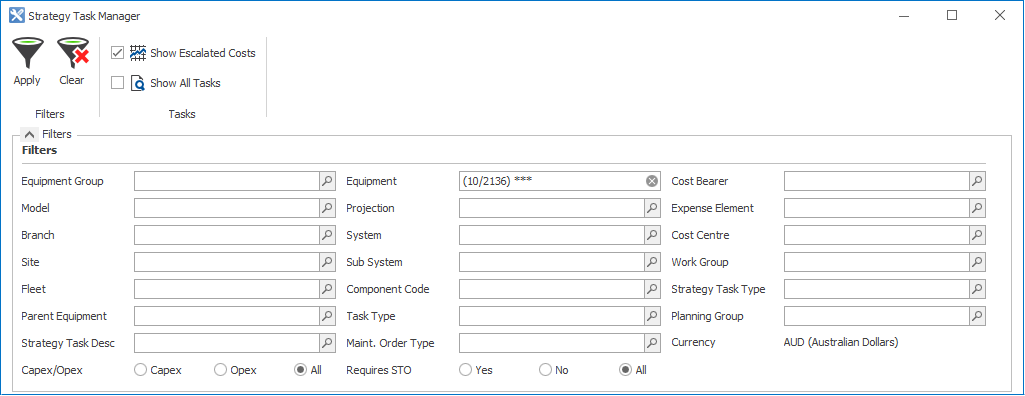
Double-click a strategy task to open the Edit Strategy Task dialog box.
Key fields on Edit Strategy Task
- The Task Mode must be Planning Task for the component to display in the long term planning forms.
- The Planning Lead Time defines when the strategy task will display in the long term planning forms.
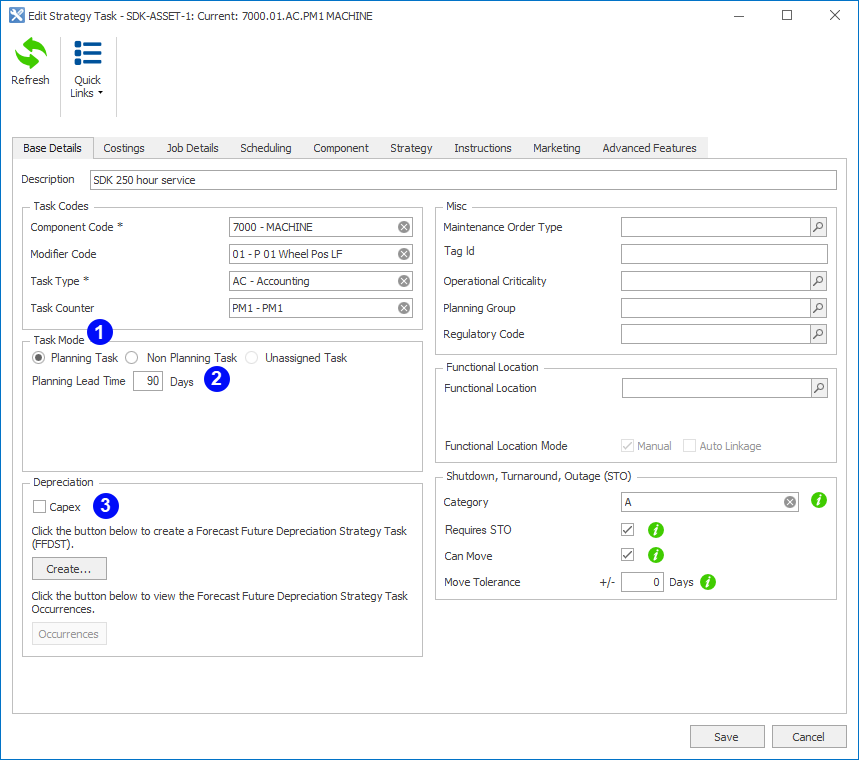
- The Capex check box, when selected, identifies the strategy task as a Capital expense. If the check box is not selected, the strategy task is an Operating expense (Opex). If a linked FFDST exists, the Capex check box is selected and cannot be changed. If a linked FFDST does not exist, the Capex check box is not selected by default, but is selectable.
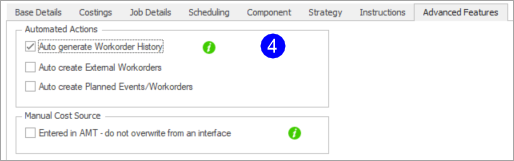
- For Dealers, Auto generate Workorder History should be selected for non-contract equipment. For contract equipment, it should be cleared as the dealer will be creating contract work orders for the work. These fields are on the Advanced Features tab.
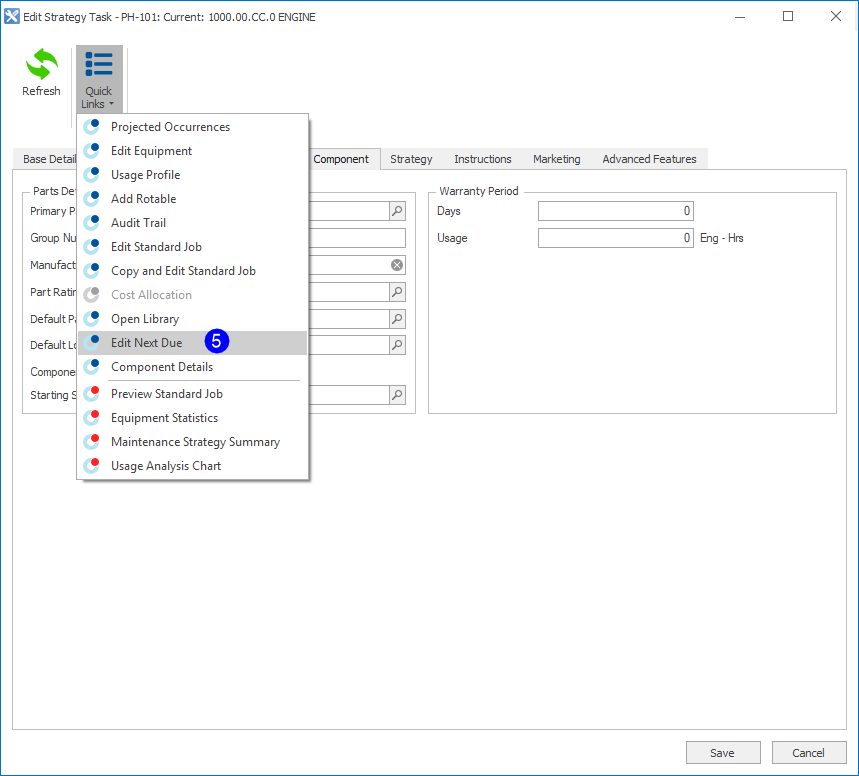
- The Parts Details section displays the default settings for that strategy task. Click Quick Links at the top of the screen and then click Edit Next Due.
- The three Component Capacity Management fields initially default to the settings in the Base Details tab, but you can edit the values.
The defaults are only applied when a changeout takes place, so you have to set them manually initially.
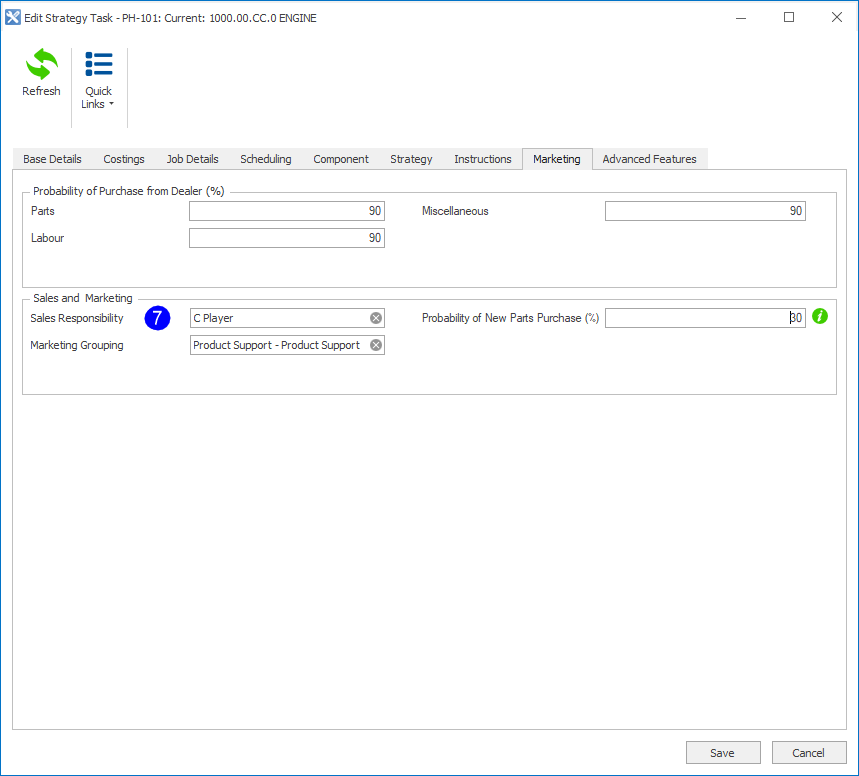
- Sales responsibility should be the sales rep, prime product sales person or account manager. This field is on the Marketing tab.